

If you’ve ever wanted to go beyond the standard ChromeOS interface, crosh is one of the first tools you should learn about. Short for Chrome Shell, crosh is a built-in command-line interface available on every Chromebook. It gives users access to diagnostic tools, network information, hardware testing, and system troubleshooting without requiring additional software.
Many Chromebook users never open crosh, but it can be incredibly useful when you’re dealing with slow performance, Wi-Fi issues, battery concerns, or simply want to learn more about how ChromeOS works. While it isn’t as powerful as a traditional Linux terminal, it provides enough commands to help with maintenance, testing, and debugging.
In this complete guide, you’ll learn what chrome shell is, how to access it safely, the most useful commands, and the situations where it can save you time. Whether you’re new to Chromebooks or an experienced tech enthusiast, understanding chrome shell is a valuable skill that helps you get more from your device.
What Is Crosh?
Crosh, short for Chrome Shell, is a lightweight command-line environment that comes pre-installed with ChromeOS. Unlike Windows Command Prompt or macOS Terminal, crosh is designed specifically for Chromebook users and focuses on diagnostics, hardware checks, and networking tasks.
One of the biggest advantages of crosh is that you don’t need to install anything to use it. Since it’s built directly into ChromeOS, every supported Chromebook includes it by default. This makes it one of the easiest ways to troubleshoot problems without downloading third-party utilities.
Although crosh resembles a Linux terminal, it isn’t intended to replace one. Instead, it offers a carefully selected collection of commands that Google considers safe and useful for everyday users. Advanced features can become available in Developer Mode, but the standard version already includes many practical tools.
Why Crosh Matters for Chromebook Users
Many Chromebook owners rely entirely on the graphical interface, but there are situations where menus simply don’t provide enough information. That’s where crosh becomes extremely helpful. Instead of guessing what’s wrong, you can quickly run commands to identify the source of a problem.
For example, if your Chromebook suddenly experiences slow internet speeds, chrome shell lets you perform network tests, monitor connectivity, and gather detailed information about your connection. These built-in tools often provide answers much faster than restarting your device repeatedly.
Another reason chrome shell is important is that it helps users understand how ChromeOS operates behind the scenes. Even if you don’t consider yourself a developer, learning a handful of crosh commands can improve your troubleshooting skills and increase your confidence when maintaining your Chromebook.
How to Open Crosh
Opening crosh is surprisingly simple. You don’t need administrator privileges or special software. Google intentionally made it easy to access so users can diagnose problems whenever necessary.
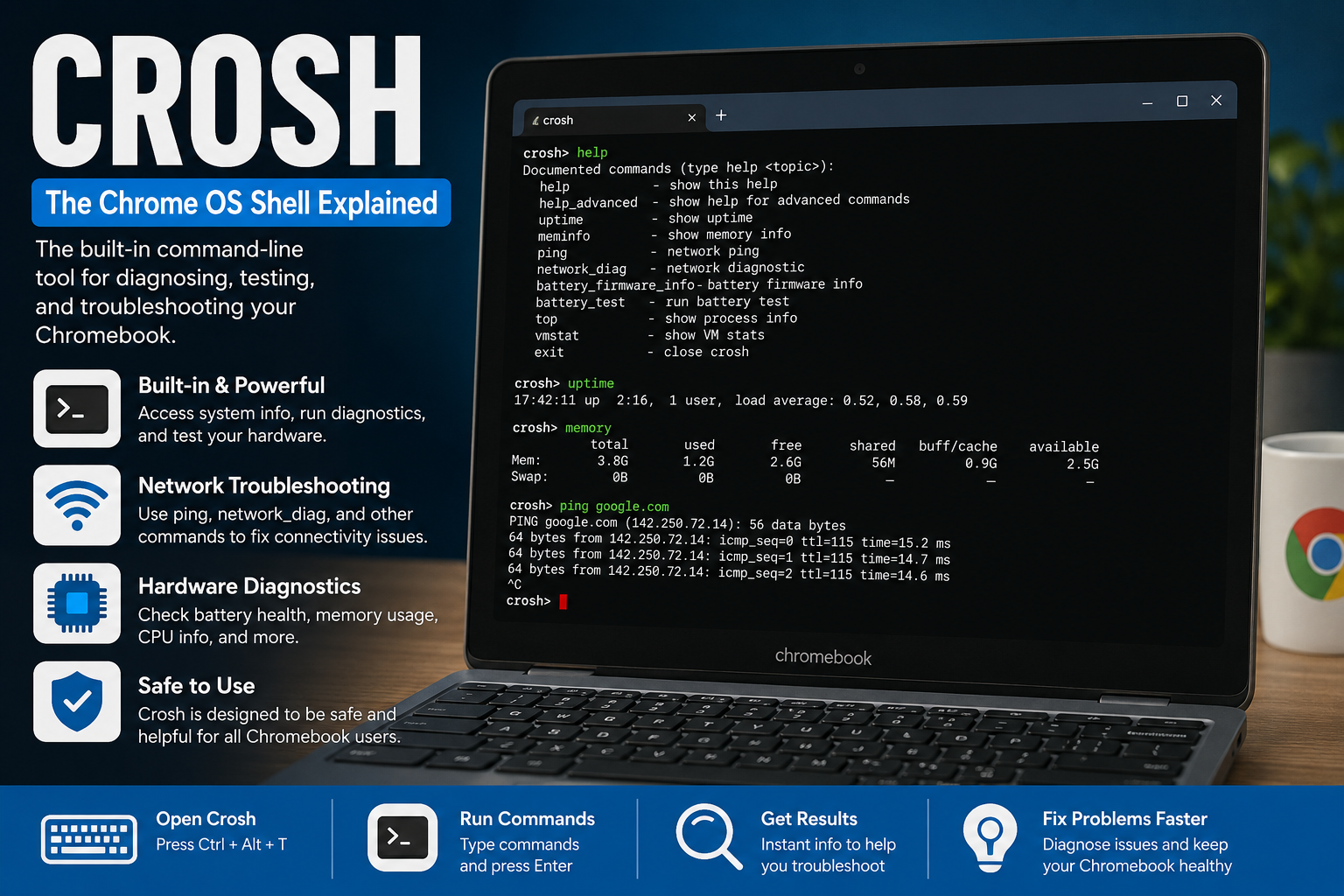
To launch chrome shell, press the following keyboard shortcut:
Ctrl + Alt + T
A new browser tab will immediately open displaying the Chrome Shell interface. You’ll see a command prompt where you can type supported commands. Unlike traditional terminals, crosh has a clean and beginner-friendly appearance.
If you’re using a managed Chromebook provided by a school or workplace, some chrome shell commands may be restricted by your administrator. This is completely normal and helps maintain security across managed devices.
Understanding the Crosh Interface
When crosh first opens, the interface may appear intimidating if you’ve never used a command-line tool before. Fortunately, it’s much simpler than it looks. Everything revolves around typing commands and pressing Enter.
Most commands produce immediate results, whether that’s displaying hardware information, testing your internet connection, or showing available options. If you enter an unsupported command, chrome shell will usually respond with an error rather than making unwanted changes to your system.
A useful feature of chrome shell is that it includes built-in help documentation. Typing:
helpdisplays a list of available commands. This allows beginners to explore the environment safely without memorizing everything.
Essential Crosh Commands Every User Should Know
Learning a few basic crosh commands can dramatically improve your Chromebook troubleshooting experience. These commands are safe, practical, and commonly used by both beginners and experienced users.
The help command is the best place to start. It displays available commands along with short descriptions. Whenever you’re unsure what chrome shell can do, this command provides an excellent overview.
The help_advanced command goes even further by listing additional commands intended for more experienced users. Exploring these options helps you understand the full capabilities of crosh without needing external documentation.
Another useful command is:
uptimeThis displays how long your Chromebook has been running since its last reboot. It’s helpful when diagnosing performance issues or determining whether a restart might improve system responsiveness.
The following command checks memory usage:
freeIt reports available RAM and memory utilization, making it easier to understand how your Chromebook is handling current workloads.
Using Crosh for Network Troubleshooting
Network issues are among the most common Chromebook problems, and crosh includes several built-in commands specifically designed to diagnose them.
One of the most popular commands is:
ping google.comThis checks whether your Chromebook can successfully communicate with Google’s servers. If the ping fails, it often indicates an internet connectivity problem rather than a browser issue.
Another useful command is:
network_diagThis performs a broader network diagnostic and gathers information that can help identify connection problems. It’s especially useful when contacting technical support because it provides more detailed information than simple error messages.
You can also use crosh to verify network performance after changing Wi-Fi settings, switching routers, or troubleshooting intermittent connectivity. Instead of relying on guesswork, these commands provide measurable results that help pinpoint the underlying issue.
Hardware Diagnostics with Crosh
One of the most valuable uses of crosh is checking the health of your Chromebook’s hardware. While ChromeOS is generally stable, hardware components such as the battery, storage, and CPU can occasionally develop issues. Fortunately, crosh includes built-in tools that help identify these problems.
For example, battery-related commands can provide useful information about battery health, charging status, and overall condition. Instead of relying only on the battery icon, chrome shell offers technical details that can help you determine whether your battery is aging normally or experiencing abnormal wear.
Storage and memory checks are equally useful. Running diagnostic commands allows you to see how system resources are being used, making it easier to determine whether slow performance is caused by limited storage, insufficient RAM, or another hardware-related issue.
Developer Mode and Crosh
Many people associate crosh with Developer Mode, but they are not the same thing. Every Chromebook includes crosh by default, and you can use many commands without making any changes to your device. Developer Mode simply unlocks additional functionality for advanced users.
When Developer Mode is enabled, chrome shell can access more powerful debugging and Linux-related commands. These extra capabilities are useful for developers, system administrators, and users who enjoy experimenting with ChromeOS internals.
However, enabling Developer Mode isn’t necessary for most Chromebook owners. It can reduce certain security protections and usually performs a factory reset during activation. Unless you specifically need advanced commands, the standard crosh environment is more than capable of handling everyday diagnostics and troubleshooting.
Best Practices for Using Crosh Safely
Although crosh is designed with safety in mind, it’s still important to use it responsibly. Reading command descriptions before executing them helps prevent confusion and ensures you understand what each command is intended to do.
Stick to documented commands whenever possible. Google provides many safe diagnostic tools that are suitable for everyday use. Avoid copying random commands from unverified websites, especially those claiming to unlock hidden features or dramatically improve Chromebook performance.
It’s also a good habit to close chrome shell after you’ve finished troubleshooting. Since it doesn’t continue running in the background, simply closing the browser tab is enough. This keeps your workspace organized and prevents accidental command execution later.
Common Mistakes Beginners Make
A common misconception is believing that crosh functions exactly like a Linux terminal. While the interface looks similar, many Linux commands are unavailable in the standard version of chrome shell. Understanding this difference helps avoid unnecessary frustration.
Another frequent mistake is assuming every command works on every Chromebook. Some commands depend on hardware capabilities, ChromeOS version, or whether the device is managed by a school or workplace. If a command isn’t available, it doesn’t necessarily mean something is wrong with your Chromebook.
Many beginners also panic after seeing an error message. In most cases, crosh simply reports that a command isn’t recognized or isn’t supported. These messages are generally harmless and don’t indicate damage to your system.
Tips for Getting the Most Out of Crosh
The best way to become comfortable with crosh is through gradual practice. Start with informational commands such as help, uptime, and network diagnostics before experimenting with more advanced features. This approach builds confidence while minimizing mistakes.
Keep your Chromebook updated. Google regularly improves ChromeOS, and updates may introduce new chrome shell commands, improve existing tools, or enhance system diagnostics. Running the latest version ensures you have access to the newest features and security improvements.
Finally, treat crosh as a troubleshooting companion rather than a replacement for ChromeOS. It’s most effective when used to gather information, diagnose problems, and verify system health. Combined with ChromeOS’s built-in settings and recovery tools, crosh becomes an essential part of maintaining a reliable Chromebook.
Frequently Asked Questions About Crosh
Many users wonder whether crosh can damage a Chromebook. In normal use, the answer is no. The default command set is designed primarily for diagnostics and information gathering, making it safe for most users.
Another common question is whether an internet connection is required. The answer depends on the command you’re running. Commands that test network connectivity naturally require internet access, while many hardware and system information commands work perfectly offline.
People also ask whether crosh is available on every Chromebook. In nearly all cases, yes. Since it is built into ChromeOS, users can access crosh without downloading or installing anything, making it one of the most convenient troubleshooting tools available.
Conclusion
For anyone who owns a Chromebook, crosh is one of the most useful built-in tools available. It provides a simple yet effective way to diagnose hardware issues, test network connections, monitor system performance, and learn more about how ChromeOS operates behind the scenes.
The beauty of crosh lies in its accessibility. You don’t need to be a developer or IT professional to benefit from it. Learning just a handful of commands can make troubleshooting faster, reduce frustration, and help you solve common Chromebook problems with confidence.
As you become more familiar with ChromeOS, you’ll likely find yourself opening chrome shell whenever you need quick system information or reliable diagnostics. Whether you’re maintaining your own Chromebook or helping others troubleshoot theirs, mastering crosh is a practical skill that every tech enthusiast should have in their toolkit.